SDK Studio: the native desktop app
SDK Studio is the SDK's desktop app. Browse every item with a real preview, build an avatar and export it, put up to 10,000 avatars in a scene and watch the frame time, start projects from the templates, and read these docs offline. It draws with the same SDK your game links, so what you see in it is what your game will get.
Install and first run
Install it with 360sona SDK Setup from the developer page (Windows, macOS and
Linux), or with the tools installer (sona app tools, unattended). It finds your licence through
SONA_SDK: set it to your app's unpacked SDK download, as for the sona command, and the Studio opens with that
download's licence.
The first time it opens it asks where the avatars' items come from:
- 360sona, online: items come from 360sona.com as they are needed. Needs the internet and your app's licence.
- A folder on this computer: a folder of item files, laid out as the SDK's tools write them.
- An Xbox 360 drive's Content folder: a console's drive, read as it is.
Then it asks for your licence (sona-licence.json, from your app's SDK download) and the catalogue
(sona-catalogue.bin, which the Wardrobe lists). Browse opens your system's file dialog for each. You can skip this and
come back to it with File > Sources and File > Open catalogue; until there is a source, the home, the Avatar builder
and the Scene say so where the avatars would be, with a button to add one. Changing sources takes effect at once, with
no restart. Advanced... in the first step takes up to four sources, asked in order.
Getting around
The tree on the left holds every pane; the address bar above it shows where you are (360sona:\Wardrobe\Shirt) and
takes an address typed in. The home (360sona:\) has a tile for every pane.
| Keys | Does |
|---|---|
| Ctrl+1 to Ctrl+8 | Switch panes, in the tree's order |
| Alt+Home | The home |
| Alt+Up | Up one level (a Wardrobe slot to the Wardrobe, a pane to the home) |
| Alt+Left, Alt+Right | Back and forward |
| Ctrl+L | The address bar |
| F5 | Refresh the pane |
On a Mac, Cmd stands for Ctrl. View > Dark theme switches the theme.
Browse items: the Wardrobe
Every item in the catalogue, with a preview of each as you scroll. Search by words, and narrow by slot, game, source
(stock, awards, marketplace, custom items) and body. Items your sources hold come first; ones they lack are marked
"not in your sources". Pick one for its details; Wear on avatar (or a double-click) puts it on the Avatar builder's
avatar. Add custom item loads a .sonaitem file you made (Custom items) for this session.
With the gate as a source, each tile shows the gate's own picture of the item, asked 120 at a time and two screens ahead of where you scroll; items it has no picture of are drawn on the stand-in. Pictures are kept on disk, so the second visit is instant. Tools > Clear the preview cache starts them afresh.
Build an avatar: the Avatar builder
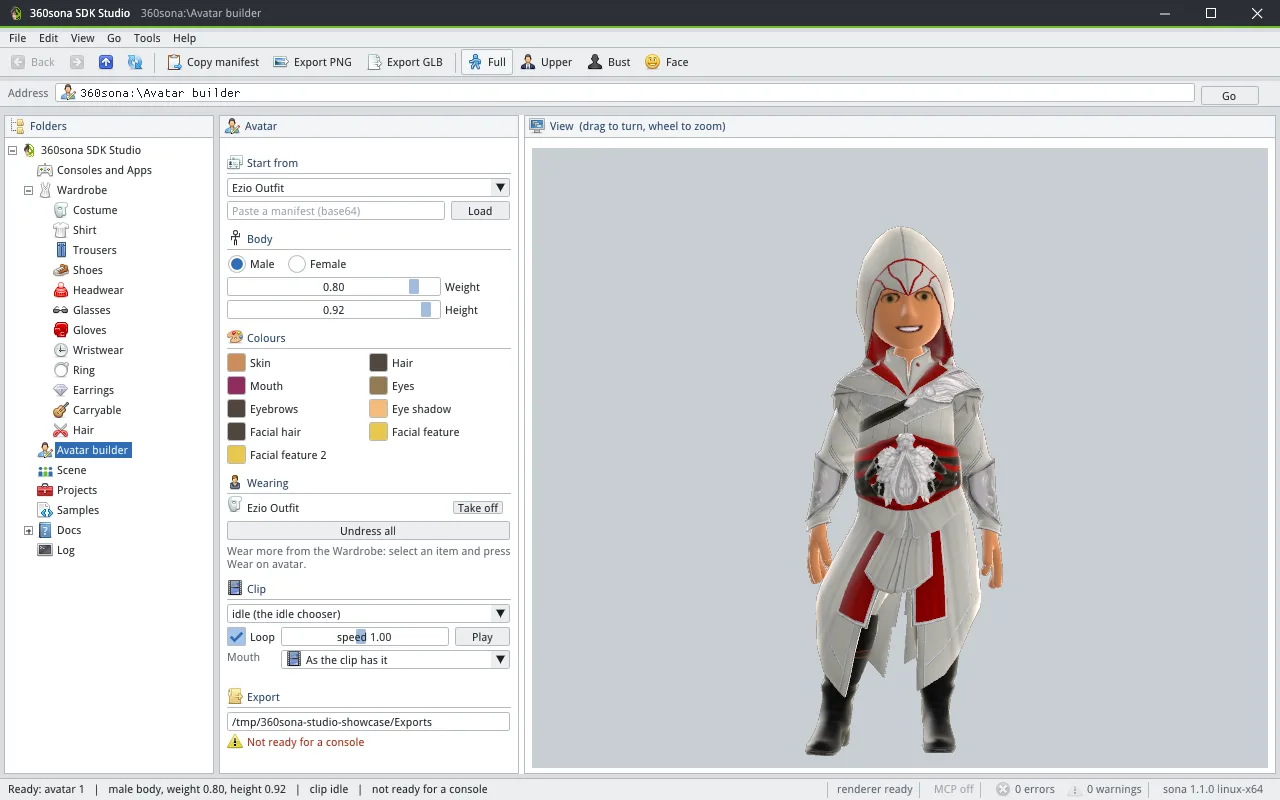
Start from a sample avatar or paste a manifest. Change the body (gender, weight, height), the nine colours and what is worn; play clips (loop, speed, crossfade) and set a mouth expression; frame it with the camera presets (Full, Upper, Bust, Face) or drag to orbit and scroll to zoom. The builder tells you whether an Xbox 360 would accept the avatar as it is.
- Copy manifest puts the avatar on the clipboard as base64, ready for your code or
sonacommands. - Export PNG saves a 1024 x 1024 picture on a transparent background, with the "Powered by 360sona" credit placed clear of the avatar.
- Export GLB saves the avatar as posed, with its textures, for Blender, three.js or any glTF viewer. It is a still
model: for a rigged GLB with clips use
sona export glb --rigged(The sona command-line tool).
Test a crowd: the Scene
Put 1 to 10,000 avatars in a grid, from the sample avatars or in random outfits from your sources, with one clip for everyone and sprites for the far ones on or off. Random outfits come from a fixed pool of about 140 items per body, the same every run: the variety is in the combinations, colours and shapes, so even 10,000 different avatars read under 2% of the catalogue and stay far inside your network's share of the gate. The camera frames the crowd as it is placed and holds still while the avatars load in; Fit camera frames them again.
The panel leads with the potential frame rate: frames a second the SDK's own work allows, not held to your
display's refresh rate. It is the longer of the SDK's CPU time (sona_update and sona_draw) and the GPU's time for
the draw, smoothed, since a game overlaps the two. Under it: the Studio's own frame (paced by the display), each
part's time with its frames a second alone, the SDK's measured fps and its slowest 5%, how many are drawn and
culled, draw calls, memory and live graphs.
Start a project: Projects
New project makes a folder from a template: an empty one, or a toolkit template such as cpp-starter with the
builder's avatar already in it. The list shows your projects (in Documents\360sona Projects on Windows,
~/360sona Projects elsewhere) with their template and when they changed.
Samples, Docs and the Log
- Samples: the SDK's sample programs, each with what it shows and its source. Copy source or Open folder to start from one.
- Docs: these pages, offline, with search across all of them.
- Log: everything the SDK reports (loads, failures, the licence check) and every file the Studio writes. Filter by level, source and words; Copy all for a bug report.
Your app: Consoles and Apps
Sign in with your app id and key to see your app, its allowed origins, the SDK Licence, your downloads, builds and usage, and to read the avatar items stored on a console drive. Tools > Agents (MCP) lets an AI agent drive the Studio. Both are in Studio agents and apps.
Updates
Once a day the Studio asks 360sona.com whether a newer SDK is out. When one is, a bar under the menus says so, with
What's new, How to update and Later. Help > Check for updates asks straight away. Set SONA_NO_UPDATE_CHECK=1 to turn
the daily check off; build servers that set CI never get it.
From the command line
sona-studio --source "dir:<asset folder>" --catalogue sona-catalogue.bin
| Option | Does |
|---|---|
--source <spec> |
An asset source, up to 4, asked in order: dir:<folder>, console:<Content folder>, gate, gate:<url> |
--catalogue <file> |
The catalogue the Wardrobe lists |
--filter <list> |
A content filter: family, no-logos, no-licensed or a rules file, comma separated (Content filters) |
--licence <file> |
Your sona-licence.json |
--projects <folder> |
Where Projects keeps its projects |
--profile <folder> |
Keep settings and previews here instead of the per-user folders |
--manifest <b64 or @file>, --cast <n> |
The Avatar builder's avatar |
--pane <name> |
Open on consoles, wardrobe, builder, scene, projects, samples, docs or log |
--theme light|dark, --size <w>x<h> |
Theme and window size |
It also works without a window, for build servers and docs:
sona-studio --screenshot wardrobe out.png --size 1280x800   # any pane, once
    it has settled
sona-studio --export-png avatar.png --export-glb avatar.glb --cast 53
Every pane's work also has a sona command, listed in The CLI and SDK Studio.
Where things are kept
| Kept | Windows | macOS | Linux |
|---|---|---|---|
| Settings | %APPDATA%\360sona SDK Studio |
~/Library/Application Support/360sona SDK Studio |
~/.config/360sona-studio |
| Previews | %LOCALAPPDATA%\360sona SDK Studio\cache |
~/Library/Caches/360sona SDK Studio |
~/.cache/360sona-studio |
Tools > Show the profile folder in the log says where they are on your machine.
This page as Markdown · All the docs as one file (llms-full.txt)